Step-by-step guide · No reinstall · No data loss · Under 10 minutes
Locked out of your Windows PC because you forgot your login password? You are not alone — and you do not need to reinstall Windows or pay for data recovery. With a PE (Preinstallation Environment) bootable USB drive, you can reset your Windows login password in about 5–10 minutes without losing a single file.
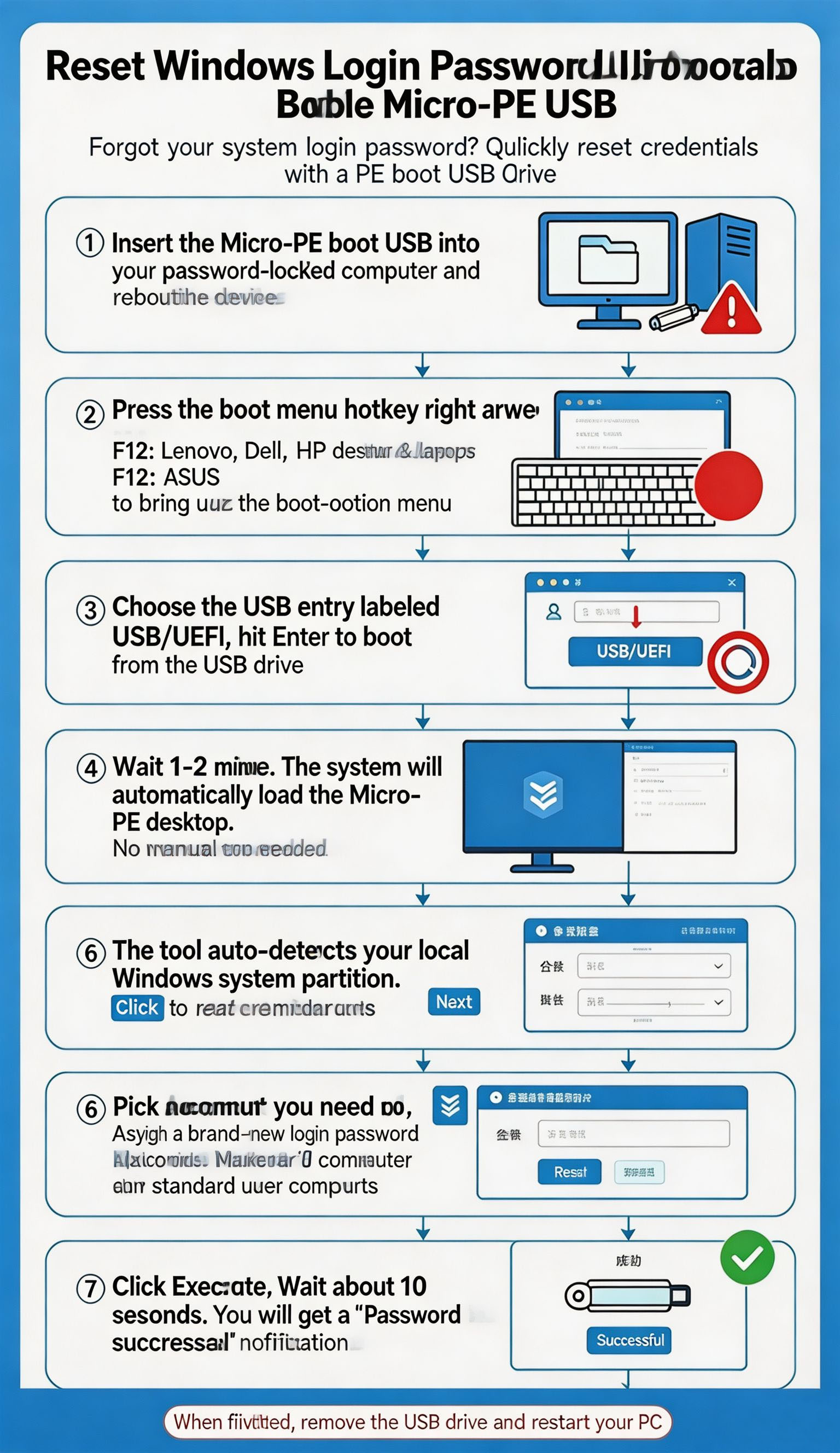
Quick Answer: Plug in a PE bootable USB → press the boot-menu key at startup (F12 on most Lenovo/Dell/HP desktops, F8 on ASUS) → boot from the USB → the PE password-reset tool auto-detects your system partition → select your account → set a new password → click Execute → restart. Done.
What You Need Before You Start
- A PE bootable USB drive (e.g., microPE). Create it on another PC using a tool such as Rufus with a Windows PE image, or a prebuilt microPE USB.
- The locked computer itself.
- About 5–10 minutes of time. No special technical skills required.
Good to know: Resetting a local account password this way does not touch your personal files, documents, or installed programs. However, if you sign in with a Microsoft account, resetting the local password will not change your Microsoft account password — for that, reset it online instead.
Step-by-Step Guide: Reset a Windows Password with a PE USB
Step 1 — Insert the PE USB Drive and Restart
Plug the microPE bootable USB into the locked PC, then restart (or power on) the machine.
Step 2 — Press the Boot Menu Key During Startup
As the PC restarts, press the one-time boot-menu shortcut key repeatedly until the boot menu appears:
| Brand | Boot-menu key |
|---|---|
| Lenovo / Dell / HP (desktop) | F12 |
| ASUS | F8 (or Esc on some models) |
Step 3 — Select the USB / UEFI Option and Boot
In the boot menu, choose the option that contains “USB” or “UEFI” (for example USB-HDD or UEFI: USB Drive) and press Enter. The PC will boot from the USB drive.
Step 4 — Wait for the microPE Desktop to Load
The PE environment loads automatically — no configuration needed. It usually takes about 1–2 minutes to reach the microPE desktop.
Step 5 — Open the Password Reset Tool
On the microPE desktop, launch the Windows password reset tool. It automatically detects your local system partition. Click Next to read the user accounts on this computer.
Step 6 — Select the Account and Set a New Password
Choose the account whose password you want to reset, then set a brand-new login password. Keep the difference in mind:
- Administrator account: full system access — use a strong password.
- Standard user account: limited permissions.
Step 7 — Click Execute and Wait
Click Execute. Within about 10 seconds you will see a “Password reset successful” message.
Step 8 — Remove the USB and Restart
Unplug the USB drive and restart the PC. Log in with your new password. That’s it!
Pro Tips & Warnings
- Choose a strong yet memorable password, and set up a password reset disk or switch to a Microsoft account for easier future recovery.
- Resetting the password does not delete or modify your personal files.
- Keep the PE USB in a safe place — anyone with physical access plus this USB can reset passwords on your machine.
- If you use a Microsoft account, reset it online at
account.live.comfor full recovery.
Security note: Only use this method on a computer you own or are authorized to access. It is a standard system-recovery technique, not a workaround for unauthorized access.
Frequently Asked Questions
Q: Will I lose my files after resetting the password?
A: No. Password reset only changes your login credentials. Documents, photos, and installed software remain untouched.
Q: Which boot key should I press?
A: Most Lenovo / Dell / HP desktops use F12; ASUS commonly uses F8 or Esc. Check your motherboard manual, or watch the boot screen for the listed shortcut.
Q: Can I reset a Microsoft account password with a PE USB?
A: The PE tool resets the local account. For a Microsoft account, reset it online or use your linked recovery options.
Q: Is this method safe and legal?
A: Yes — it is a standard system-recovery technique. Use it only on devices you own or are authorized to access.
Conclusion
A forgotten Windows password is annoying, but easy to fix. With a microPE bootable USB and the eight steps above, you can regain access in minutes — no reinstall, no data loss. Bookmark this guide for the next time you (or a friend) get locked out.